Seasonal Upgrades for Your Adaptify SEO Strategy ☃️



Hello there,
We’ve reached that point in December where half the office is still finishing leftover pie, the other half is already negotiating how early is too early for out-of-office replies, and Mariah Carey has begun her annual ascent into every grocery store, coffee shop, and coworking space known to man.
If you’ve already heard “All I Want for Christmas Is You” more times than your stress levels can tolerate, don’t worry. This week’s updates are quieter, tidier, and, thankfully, much more useful. Think of them as a small seasonal break from the background soundtrack.
We have three gifts for you: a cleaner way to organize keyword clusters, a clearer billing view for multi-site accounts, and a simple guide to help your AI write in your brand voice without any holiday falsetto.
Let unwrap whats new!
☃️ Make your client's holiday's even brighter with incredible content. Start a 7-day free trial, or book a demo to discover how easy it is to wow your clients and close more deals—faster! Get started today! ☃️
A New Way to Organize Keyword Clusters
Your Keyword Strategy dashboard has now received a thoughtful refresh. Instead of the old green check marks and gray paused clocks, your clusters now live in two clear groups that are much easier to control.
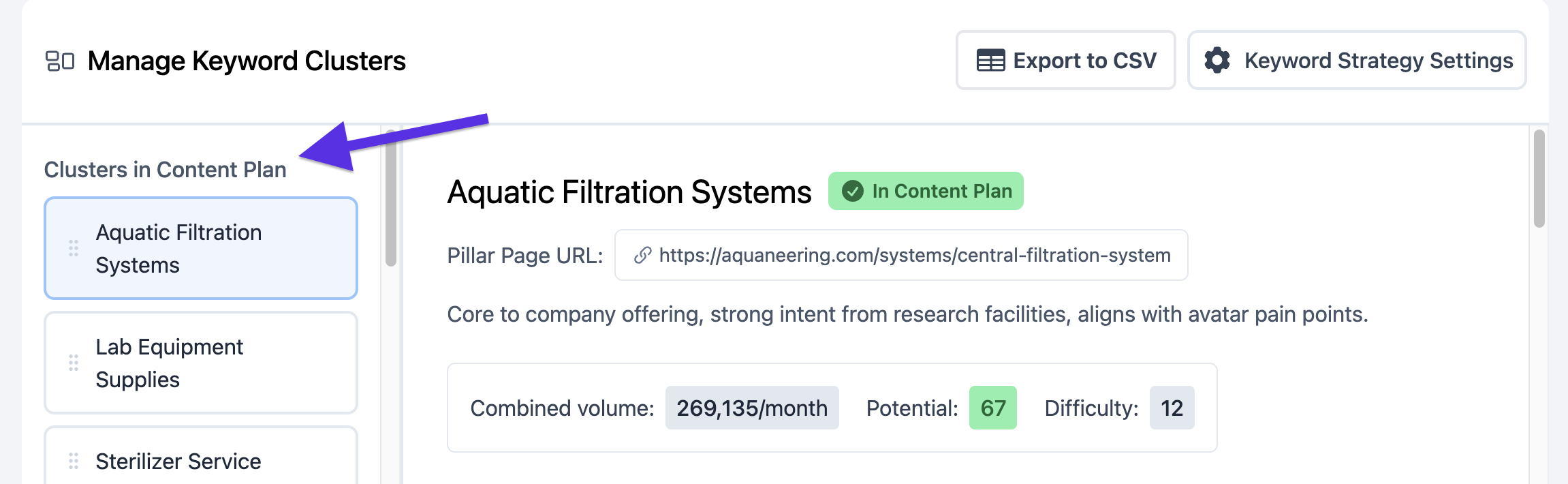
Clusters in Content Plan
This is the section at the top of the left hand Cluster column. Any cluster that appears here is active in your content plan. You can now drag and drop clusters using the six little dots next to each one. This lets you reorder your priorities at any time. Just grab a cluster and shift it where you want it. The cluster at the very top is the one the AI will prioritize most, the one at the bottom will be used more sparingly, and everything else will fall in between.
Paused Clusters
You’ll also now see a Paused Clusters section at the bottom of the left-hand column. Any cluster moved here will be held for later use and will not be added to the active content plan. It’s a simple way to set aside topics you may want to revisit without losing track of them.
NOTE: If you do not see this section at all, it means every cluster is currently active. To create it, just click Pause Cluster on any cluster and the section will appear automatically.
And for those who prefer the original workflow, the Add to Content Plan and Pause Cluster buttons still work exactly the same as before. You simply have more flexibility now, plus a much cleaner layout to manage your content priorities.
A Cleaner, More Helpful Billing Overview
Next, you will notice a streamlined My Account area with a simpler layout. The newly revised left-side navigation panel organizes everything into tidy, easy-to-find sections so nothing gets lost.
Under Plans and Billing, you will now see a more complete billing overview for every site on your account at a glance. This includes:
The plan type (Content and Backlinks, Backlinks Only, Content Only) The site’s current payment status Renewal dates The discount tier applied The total amount subscription amount
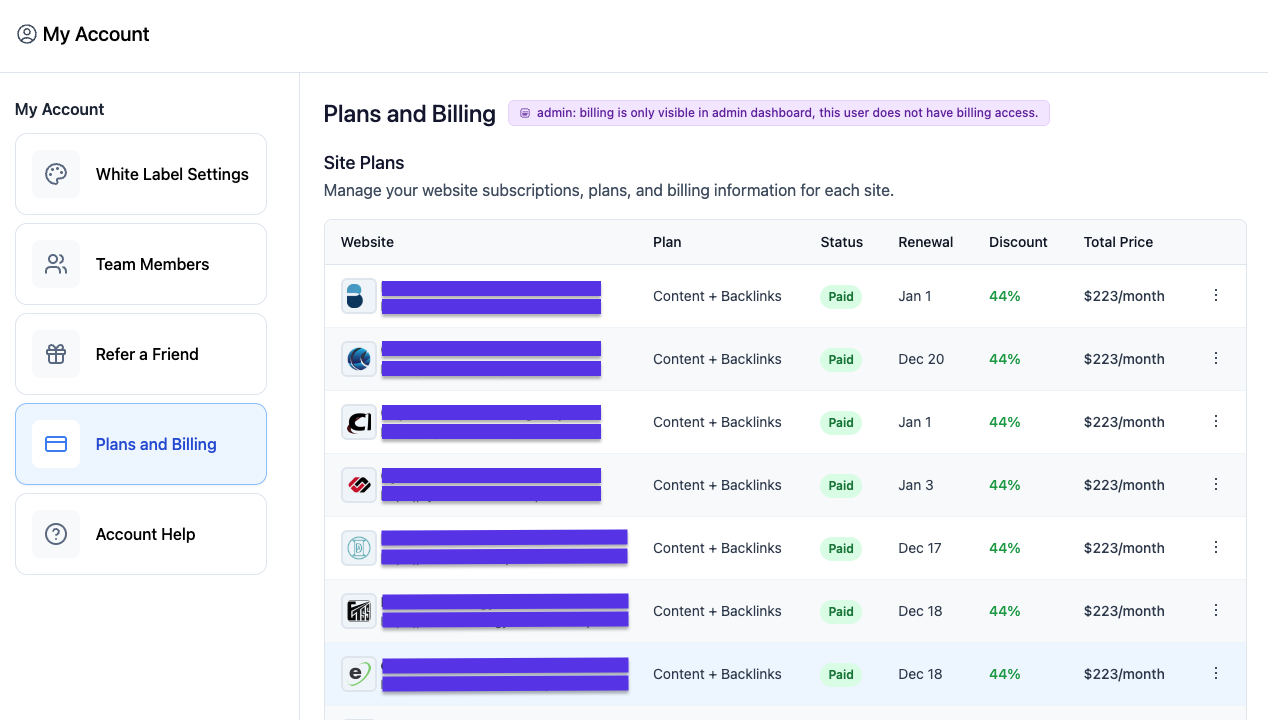
On the far right, the three little dots open a menu where you and your team can view and download all receipts for that site.
This update is meant to remove extra accounting needs and guesswork. Now your billing information is all visible in one place so you can reconcile, forecast, and prepare without jumping between screens.
A Quick Guide to Creating Your Own AI Brand Identity Style Sheet
If you want your client’s articles to follow a consistent tone of voice, structure, or branding rules across every article, creating a simple style guide is a quick and easy way to get there. Here are some simple steps to get going:
Step 1: Gather a couple of articles written in the exact style you prefer. Two examples are usually enough.
Step 2: Drop them into your AI of choice and ask it to create a style guide. This guide should include:
Grammar preferences The type of tone you prefer. IE. educational, optimistic, formal, playful, etc. Words or phrases you never want used Formatting details Any brand-specific instructions Once the AI produces the style guide, review it and make edits as needed.
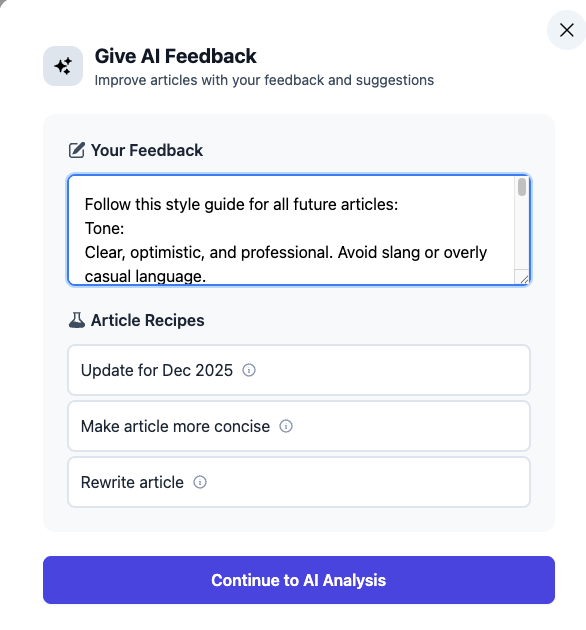
Step 3: Add the style guide to Adaptify. Go to any article (published or not) and click Give AI Feedback in the bottom left corner. In the feedback box, type:
Follow this style guide for all future articles:
Then paste in the style guide and click Continue to AI Analysis. After about a minute, you will see a list of improvements. Approve them and save.
And thats it! You’ve now created a new style guide that every new article will follow for that client.
As a reminder, keep in mind that this is not retroactive. If you want older articles updated too, open Give AI Feedback on that specific article, type “Regenerate”, and then click Regenerate Article box on the next page.
This is a quick and simple way to protect your brand voice across every client, especially during busy seasons when teams are stretched.
As you wrap up client work for the year, we hope these updates give you a little more breathing room among the gift shopping, travel plans, and year-end reporting. Think of this week’s improvements as a small dose of calm during the holiday shuffle.
If you have questions about any of the changes, need help getting ready for January, or want to talk strategy, feel free to reach out. (And if you have not tried a style guide yet, this is a great time of year to set it up before the new content cycle starts.)
With Christmas only fourteen days away, we won’t send another newsletter this month, so this will be our last check-in until the new year. If you’re new to Adaptify and want to start 2026 with a stronger, more streamlined SEO workflow, visit Adaptify.ai or schedule a demo to see how everything fits together.
Wishing you a restful close to the season, and we’ll see you in 2026. ☃️
Best,
Dominic, Hans, Bethany
Automate your Agency (by Adaptify SEO)


Master SEO monitoring with key metrics and tools to track rankings, technical health, and organic growth for continuous performance optimi...

The Best Online Keyword Monitoring Tools for Real-Time Alerts - Learn about online keyword monitoring tool

Stop Flying Blind with These Top SEO Monitor Tools - Learn about seo monitor tools
Join 1,000+ agencies already delivering SEO and AI visibility from a single platform without increasing their headcount.Join 1,000+ agencies already delivering SEO and AI visibility from a single platform without increasing their headcount.