
Keywords and Clusters
Understand how keywords and clusters are structured and how to configure them correctly.
Keyword clusters are the foundation of Adaptify's content planning. A cluster is a group of related words or phrases around the same topic, so Adaptify can plan articles, understand internal linking opportunities, and decide which content should be created first.
For example, if the topic is “dog care”, the cluster might include keywords like “dog breeds”, “puppy care”, and “best dog food”. Grouping related searches together helps Adaptify create a strategy around a topic instead of treating every keyword as a separate isolated idea.
Where to manage clusters
You manage clusters in Manage Keyword Clusters. This page shows the cluster list, the keywords inside each cluster, the content-plan status, and the key metrics Adaptify uses to prioritize topics.
From this page you can add clusters, add keywords, upload keyword data, reorganize keywords, set pillar pages, export cluster data, and refresh the content plan after making changes.
Clusters in the content plan
Clusters in the content plan are eligible for automated content planning. These clusters are part of the active strategy and can be selected by Adaptify when deciding what articles to create next.
The keyword manager keeps at least a small set of high-potential clusters active. If there are not enough active clusters, Adaptify can automatically activate eligible clusters based on potential so the content plan has enough topics to work from.
Clusters not in the content plan
Clusters not in the content plan are paused from automated planning. They stay in the keyword manager, but Adaptify will not prioritize them for upcoming automated content until they are moved back into the content plan.
This is useful when a topic is not relevant right now, when you want to delay it, or when you want to keep the keyword data without letting it affect the next articles.
Primary and secondary keywords
Inside a cluster, a primary keyword is the main keyword an article should target. Secondary keywords are related terms that support the same intent and can often be covered inside the same article.
This helps avoid keyword cannibalization. Instead of writing separate articles for every similar keyword, Adaptify groups related terms and uses one primary keyword as the main direction.
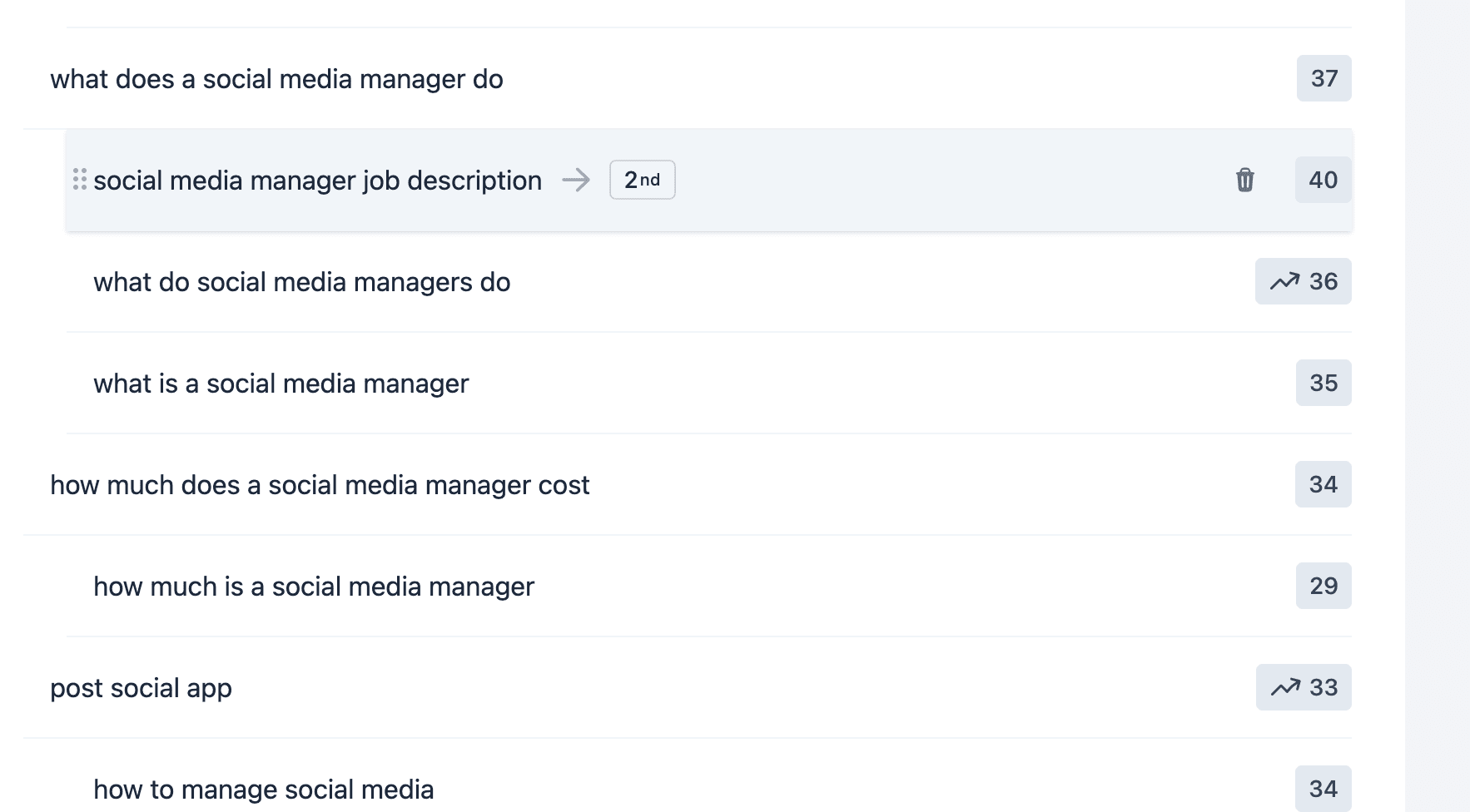
In the keyword manager, secondary keywords are nested under their primary keyword. You can drag keywords between groups to change whether a keyword is primary, secondary, or belongs to another cluster.
Adding keywords and importing existing strategy
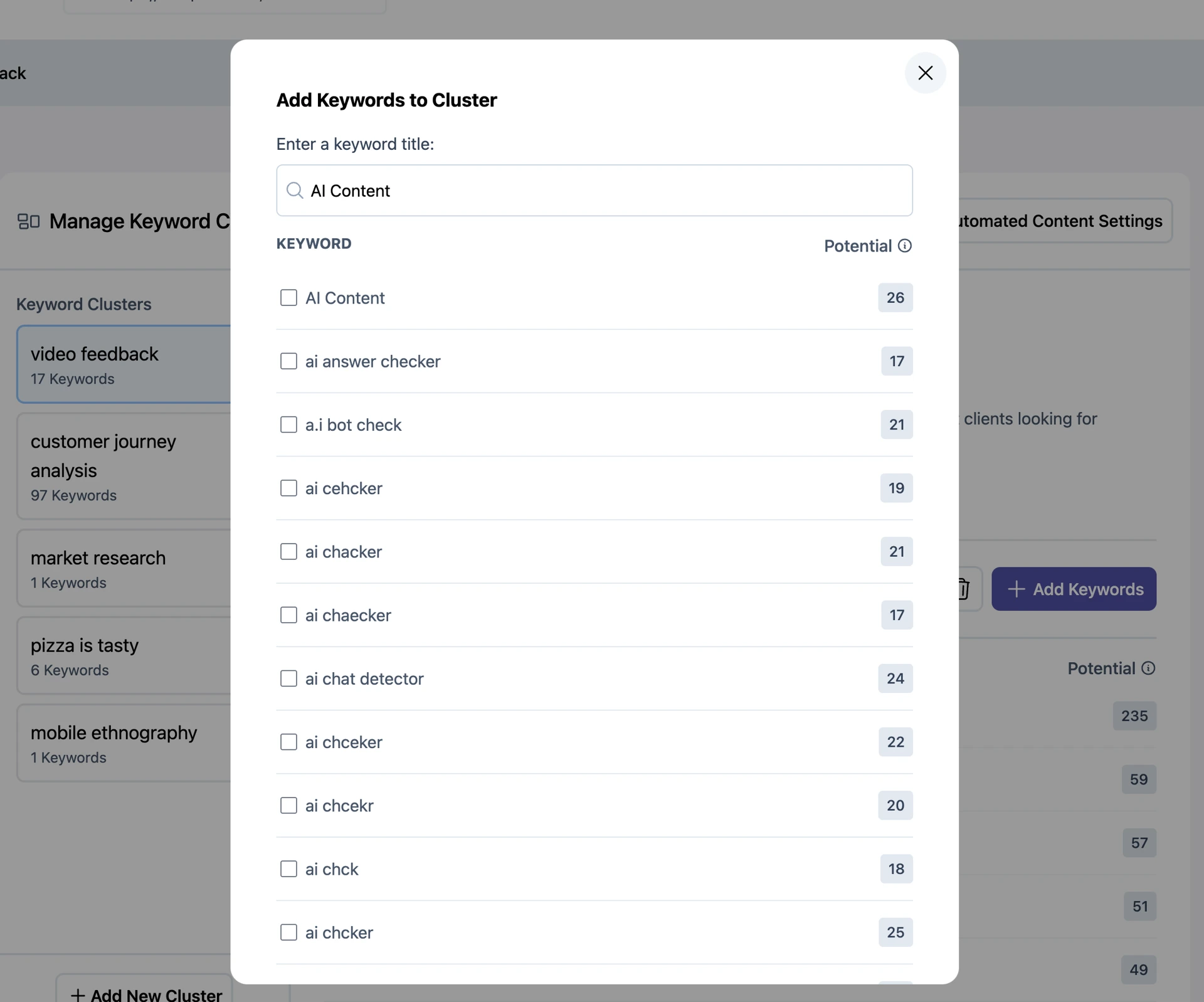
You can add more keywords to any cluster. When you add a keyword, Adaptify can use it as a seed and suggest more related keyword opportunities.
If you already have a keyword strategy, you can import keywords using CSV. Imported keyword data can then be organized into clusters and used as part of the content strategy.
CSV upload
If you already have a keyword plan in a spreadsheet, you can bring it into Adaptify with a CSV file. There are two ways to upload, depending on how much of your plan you want to import.
- Import keywords for multiple clusters: use this when your spreadsheet covers several topics. Each row says which cluster the keyword belongs to. Adaptify creates clusters that do not exist yet and adds keywords to the ones that do.
- Add to this cluster only: use this when you want to add a list of keywords to one cluster you already have open.
Both work the same way. You choose a file, Adaptify checks it and shows a review of the clusters and keywords it found, and nothing changes until you confirm. After the import, a summary shows what was added, updated, or skipped, and why.
The easiest way to start is the CSV template. Use the Download the CSV template link in the upload window, replace the example rows with your own keywords, and upload it. Delete the example rows first, or they will be imported too.
CSV Import: keywords for multiple clusters
Three columns are required: Cluster, Pillar-Page, and Keyword. Every row needs a Cluster and a Keyword. The Pillar-Page value can be left blank, but the column must still be in the file. Everything else is optional.
| Cluster | Pillar-Page | Keyword |
|---|---|---|
| Coffee Beans | /coffee-beans | Dark Roast Coffee Beans |
| Coffee Beans | /coffee-beans | Light Roast Coffee Beans |
| Espresso Machines | https://www.yourwebsite.com/espresso | Best Espresso Machines |
| Coffee Recipes | (can be left blank) | Iced Coffee Recipes |
- Cluster: the topic the keyword belongs to. Rows with the same cluster name are grouped together. If the cluster already exists, the keyword is added to it. If not, a new cluster is created.
- Pillar-Page: the main page on your website this cluster should support. Articles in the cluster will link to it. Use the same pillar page on every row of a cluster.
- Keyword: the search term you want an article for. Each keyword can become its own article.
Adaptify also accepts common names for these columns. Cluster can be called Clusters or Topic Cluster. Pillar-Page can be called Pillar, Pillar Page, Pillar URL, or URL. Keyword can be called Keywords, KW, Term, or Terms.
Optional columns: plan each article
You can add optional columns to tell Adaptify how you want each article written. Fill in only the ones you care about. You can leave any cell blank, and you can leave out any column you do not need.
| Column | What to write | Example |
|---|---|---|
| Preferred Title | The exact article title you want. It is used as written. | Best Dark Roast Coffee Beans in 2026 |
| Article Brief | A short description of what the article should cover, in your own words. | Compare a few dark roast beans and help a beginner choose one. |
| Article Intent | What the reader wants: to learn, to compare, or to buy. | Informational |
| Angle | The approach or format of the article. | Practical buying guide |
| Required Points | Points the article must include. | Flavour notes; brewing methods; storage |
| Author Perspective | Whose point of view the article is written from. | A barista who has tested each machine |
| Audience | Who the article is for. | Home baristas on a budget |
| Writing Style | The tone of voice. | Friendly and clear |
| CTA Direction | What you want readers to do at the end. | Book a free machine consultation |
| Educational Takeaway | What the reader should know or be able to do after reading. | Descale a machine safely in under 20 minutes |
| Additional Context | Anything else the writer should know. | Descaling every 2 to 3 months prevents repairs |
| Publish Date | The day the article should publish, as YYYY-MM-DD or MM/DD/YYYY. | 2027-03-15 |
Everything you enter in these columns, except the title, is combined into the keyword's article brief. The brief guides the outline and the article, and you can read it on the article page and in the keyword strategy. The Preferred Title is kept exactly as you wrote it. These fields apply to articles that have not been written yet.
A Publish Date pins the article to that day on your calendar, the same as dragging it there yourself. Adaptify schedules its other articles around it. A date with slashes is always read as month/day/year. Today and past dates are skipped, and the review screen warns you before you import. If the article already has a date, the date in your file replaces it. Published articles keep their date. Leave the cell blank to let Adaptify schedule the article.
Suggested Headline also works as a name for the Preferred Title column, and Required Context works for Required Points. Publishing Date, Publication Date, Scheduled Date, and Pinned Date also work for Publish Date. Columns Adaptify does not recognize are ignored, and the review screen lists them so you can check for typos.
CSV Import: Add to this cluster only
This option adds keywords to the cluster you have open. The simplest file is one keyword per row, with Keyword as the first row. Every keyword is added to the current cluster.
| Keyword |
|---|
| Dark Roast Coffee Beans |
| Light Roast Coffee Beans |
| Decaf Coffee Beans |
If your file has more columns, only the Keyword column is used. You can also upload a full file with Cluster, Pillar-Page, and Keyword columns here, as long as every row uses the name of this cluster. That is useful when you want to include optional planning columns for these keywords.
Pillar pages in a CSV
- Full address: a full URL on your own website, such as https://www.yourwebsite.com/coffee-beans.
- Path only: a path that starts with a slash, such as /coffee-beans. Adaptify adds your website address for you.
- Blank: the cluster keeps its current pillar page, or has none yet.
A pillar page must be on your own website. A link to another site is not applied, and the review screen tells you before you import. If the rows of one cluster list different pillar pages, none of them is applied, and the import summary reports it as a conflict.
What happens when you import
- New keywords are added to their cluster, and new clusters are created.
- Keywords already in your strategy are not duplicated. If you upload the same file twice, nothing is added the second time.
- If your file puts an existing keyword in a different cluster, it is moved to the cluster in your file.
- Keywords you removed earlier are restored if they appear in your file.
- A new Article Brief or Preferred Title updates the keyword. A blank cell never erases what is already there.
- Rows without a cluster or keyword, blank rows, and repeated rows are skipped. The summary lists skipped rows with the reason for each.
Only one import runs at a time for each website. Large files can take a minute or two. If an import is still running after a few minutes, you can cancel it and upload again. Cancelling stops the import, but keywords that were already added stay. Uploading the same file again is safe, because keywords that already exist are skipped and the rest are added.
CSV file requirements
- The file must be a .csv file with values separated by commas.
- Save it with UTF-8 encoding. In Excel, choose CSV UTF-8 when you save. In Google Sheets, use File, Download, Comma-separated values.
- The first row must hold the column names, and each name can appear only once.
- A file can be up to 10 MB, with up to 10,000 rows and 100 columns.
- Text inside a cell can include commas and line breaks, as long as your spreadsheet app saves the file as a normal CSV.
If a file does not meet these rules, the upload window shows the problem right away, before anything is imported.
How keywords become articles
High-impact primary keywords can become articles. Sometimes multiple similar keywords are combined into one article when they share the same search intent.
This is why primary and secondary keyword grouping matters: the primary keyword usually defines the article direction, while secondary keywords help broaden the article coverage without creating duplicate content.
When an article exists or is planned, the keyword row can link you to the relevant article so you can review the content behind that keyword.
Automatic keyword top-ups
If a site starts running low on useful keywords, Adaptify can top up keyword opportunities at regular intervals. The goal is to keep the content plan looking ahead so there is enough time to review and adjust the strategy before content is created.
Potential, difficulty, and combined volume
Potential is Adaptify's score for how attractive a keyword or cluster is. It is calculated from signals like search volume, difficulty, and the domain authority of the website. Higher potential is better.
Difficulty estimates how competitive the keyword or cluster is. Higher difficulty means the topic may require more authority, more supporting content, or backlink building to rank well.
Combined volume shows the total monthly search volume across the cluster. It helps explain the size of the opportunity, but it should be read together with potential and difficulty rather than used alone.
Ordering and prioritization
Clusters are sorted with active content-plan clusters first, then by potential. If you manually drag clusters into a different order, Adaptify stores that order as a user override so your chosen priority stays in place even when backend scores are recalculated.
Dragging a cluster higher in the content plan can activate it for planning. Moving a cluster lower can pause it when it falls outside the active streak. This lets you guide the strategy without needing to manage every article manually.
Refresh or create the content plan
When you make cluster changes, Adaptify can update the content plan automatically, but it may take time. If you want the changes reflected sooner, use Refresh Content Plan to research the keywords again and update the plan.
If a cluster is not currently in the content plan, Add to Content Plan will research the keywords and add the cluster to the plan. If you do not do this manually, the cluster may still be added later when Adaptify decides it is the right next opportunity. The only exception is, if you have manually paused the cluster, Adaptify will not add it to the content plan until you manually activate it.
Creating new clusters
You can create a new cluster yourself. Give the cluster a clear title that describes the topic, then add keywords or use AI feedback to expand it.
Adaptify can also create and organize clusters automatically based on the website, existing rankings, and keyword opportunities. If auto-generated clusters are disabled in settings, Adaptify will stop creating new clusters for that site until it is re-enabled.
Pillar pages
A pillar page is the main page you want a cluster to support. For example, if a cluster is about a service, the pillar page is usually the service page you want to rank.
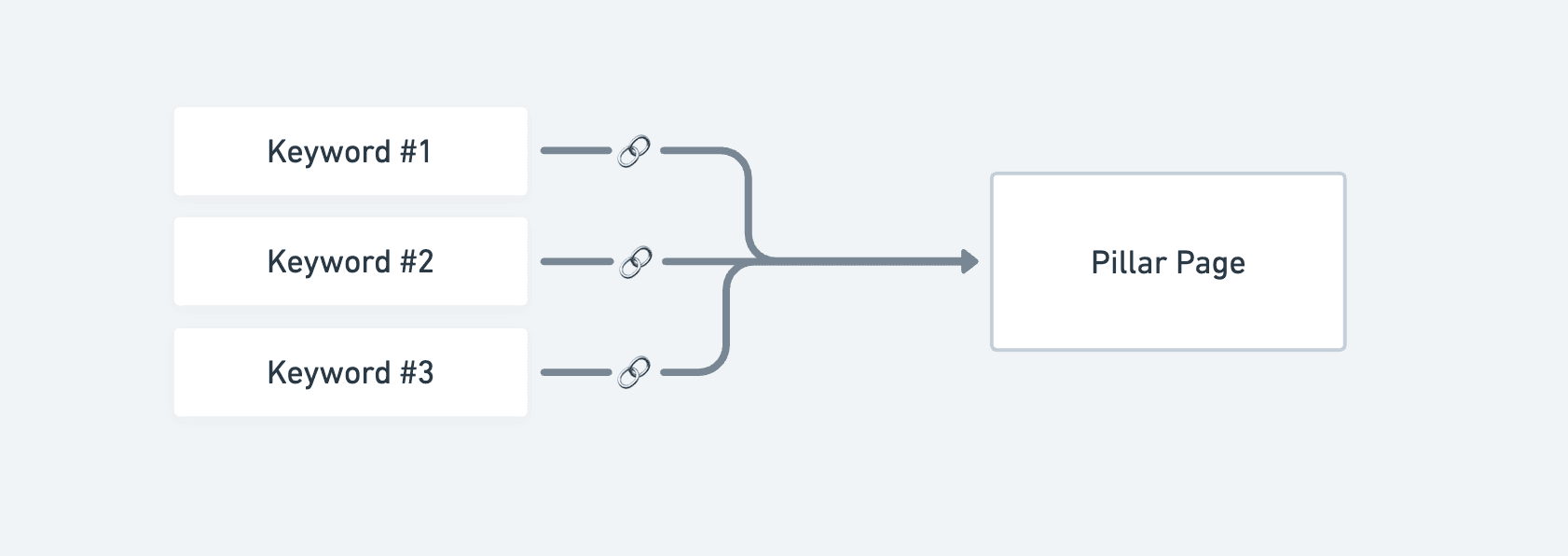
Every article in this cluster will prominently link to the pillar page. This builds authority for the page and helps it rank higher in search results.
Previously created articles in the cluster are not updated automatically when you change the pillar page. The setting affects future content and planning.
When to change the URL
Change the pillar page URL when the current page is not the page you actually want to rank for, or when the cluster should support a more commercial page such as a service or product page.
Try to set the pillar page before a lot of articles are created, because it gives Adaptify the clearest linking target from the start.
Cluster author
When a site has more than one author profile, each cluster gets one author. Every new article in the cluster is written by that author, in their voice, and on WordPress it is published under their WordPress user when one matches.
Adaptify picks the author automatically from your author profiles, the author instructions, and the cluster's keywords. To choose the author yourself, click Author next to the Pillar Page URL, pick an author profile, and save. Choose Automatic to let Adaptify pick again.
- Articles that are already written keep their author.
- A WordPress author you set on a single article still wins for that article.
- Sites with one author profile, or with typed author names in Author Options, keep picking the author per article.
Manage keyword strategy with Adaptify
Open Keyword Strategy and use Ask Adaptify in the AI sidebar to describe the changes you want instead of manually editing every cluster and keyword.
For example, you can ask Adaptify to:
- Add keywords to a specific cluster.
- Remove low-potential keywords.
- Reorganize or reprioritize clusters.
- Pause or activate named clusters.
- Find more location-based, question-based, or long-tail opportunities.
Adaptify will ask for any missing details and tell you when the change has been applied or when a larger update is ready for review.
To reactivate a paused cluster when its drag control is unavailable, ask Adaptify in the AI sidebar to activate it and include the cluster name.